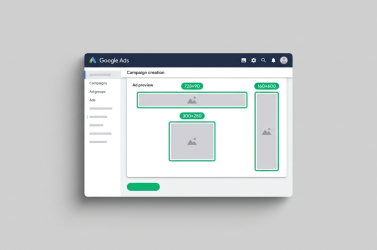




What Is Google Shopping and How It Works
Google Shopping displays product ads with images, prices, store names, and direct product links. Unlike search ads, you don’t manually write ads for each keyword. Google uses data from Merchant Center feeds and matches products based on attributes such as title, category, brand, GTIN, price, and availability.
Core logic:
- Upload a structured product catalog to Merchant Center.
- Google matches your inventory with user search queries.
- Ads are shown to high-intent buyers.
- You manage priorities, bids, and structure via Google Ads.
How Google Shopping Differs from Standard PPC
- Targeting is product-based, not keyword-based.
- Creatives are generated automatically from feed data.
- Feed quality is the key success factor.
- Broader and well-structured catalogs increase reach.
Advantages and Disadvantages
Pros:
- fast sales launch for eCommerce;
- high visibility with product images and prices;
- scalable for large catalogs;
- quick identification of profitable categories.
Cons:
- heavy reliance on feed accuracy;
- requires optimized product pages and mobile UX;
- budget can be wasted without analytics;
- pricing, availability, and shipping strongly affect performance.
Who Should Use Google Shopping
Best suited for:
- online stores with structured catalogs and frequent updates;
- D2C brands testing product demand;
- businesses with competitive shipping/logistics;
- projects with basic analytics (GA4 + conversion tracking).
Website Requirements Before Launch
Before starting, ensure:
- website prices and availability match the feed;
- product pages contain full details (price, images, variants, shipping, contact info);
- mobile speed is optimized;
- correct tax, currency, and shipping settings;
- conversion tracking is configured (purchase, checkout, add-to-cart).
What You Need to Launch Google Shopping Ads
Create a Google Merchant Center Account
Merchant Center is the “data warehouse” for product ads. Here you:
- verify domain ownership;
- provide business information;
- configure shipping and returns;
- upload product feeds and monitor product status.
Practical tip: use a dedicated business Gmail account with proper role access (admin / standard / read-only).
Add Products to Google Merchant Center
Products are added via a feed. Google prefers well-structured feeds with accurate attributes — this directly impacts impressions and CPC.
Create a Product Data Feed
A feed is a file or spreadsheet where each row = product and each column = attribute.
Minimum required attributes typically include:
- id (unique identifier);
- title (no spam phrases);
- description (no keyword stuffing);
- link (product page URL);
- image_link (high-quality main image);
- price;
- availability (in stock / out of stock);
- brand, gtin or mpn (if applicable);
- condition (new/used);
- google_product_category and/or product_type.
For stores with dynamic stock levels, automated feed generation is strongly recommended.
Upload the Feed
Options include:
- Scheduled fetch (URL-based automatic import);
- manual file upload (small catalogs);
- Content API (large, frequently updated catalogs);
- platform integrations (Shopify, etc.).
Recommendation: update feeds at least daily if prices or stock change frequently.
Link Google Ads with Merchant Center
This step is mandatory. Merchant Center supplies products; Google Ads controls budget and performance.
Check:
- correct account ownership and permissions;
- proper Merchant Center selection;
- enabled target countries and programs.
Setting Up Shopping Campaigns in Google Ads
Start with Standard Shopping for better manual control (structure, search term review, product priorities). Later, expand after understanding campaign profitability.
Core Standard Shopping Settings
- select goal (preferably Sales);
- choose Merchant Center and feed;
- select product groups;
- define bidding strategy and daily budget;
- configure location and schedule.
Campaign Naming, Bidding & Budget
Use clear naming: country / category / strategy / launch date.
Beginners may start with Manual CPC or Maximize Clicks with limits, then move to automated strategies once conversion data is available. Allow 7–14 days for stable data collection.
Location & CPC Strategy
Target only areas where you actually ship. Don’t evaluate success solely by CPC. Focus on cost per order, margin, and profitable product share.
What to Do After Setting Up Google Standard Shopping
After launch, campaigns rarely optimize themselves. Google Shopping drives traffic quickly, but true efficiency comes from structured optimization: product grouping, clean analytics, clear UTM tagging, and regular search term analysis. These steps often deliver +20–40% improvement without increasing budget.
Product Grouping
A common mistake is keeping one “All Products” group with a single bid.
Better structure:
- by margin level;
- by category;
- by brand;
- by price range;
- separate group for bestsellers.
Grouping must be operational — allowing bid adjustments and clear optimization decisions.
Reporting Columns
Add key metrics:
- clicks, impressions, CTR;
- average CPC;
- cost, conversions, conversion value;
- cost per conversion;
- impression share;
- segmentation by brand/category/product type.
You should identify performance issues within minutes.
What Breaks Analytics
Common issues:
- conversions not imported;
- duplicate conversions;
- missing cross-domain tracking;
- incorrect GTM setup;
- currency mismatches;
- broken UTM tags.
If you see clicks but no purchases, fix tracking before adjusting bids.
UTM Tracking
Without UTM tags, reports show only “Google / CPC”.
Basic template:
- utm_source=google
- utm_medium=cpc
- utm_campaign={campaignid}
- utm_content={adgroupid}
- utm_term={keyword}
Consistency is key.
Multiple Campaign Structure
Allows you to:
- isolate bestsellers;
- separate brands/categories;
- manage geo;
- test new products.
Typical growth structure:
- “Bestsellers” — high priority.
- “Main Catalog” — stable scale.
- “Test/New” — limited budget.
Product Exclusions
Turn off:
- out-of-stock items;
- high-spend/no-conversion products;
- poorly optimized listings;
- low-margin SKUs.
Rule of thumb: 100–200 clicks without purchase = review trigger.
Search Term Optimization (Standard Shopping Only)
Use search term reports to:
- add negative keywords;
- reinforce profitable queries;
- filter out irrelevant intent;
- remove informational traffic.
Recommended routine: 1–2 times per week during the first month.
Universal Google Shopping Strategy
Shopping works best as a system, not as a single campaign.
A scalable structure:
- Feed as a product. Regularly optimize titles, images, attributes, GTIN. Improves relevance and lowers CPC.
- Profit segmentation. High-margin products and bestsellers get separate budgets.
- Assortment testing. New products launched in limited-budget campaigns.
- Search term control. Standard Shopping cleaned with negative keywords.
- Revenue optimization. With conversion value tracking, you scale profitable products faster.
Core cycle: data → decision → test → scale.
Important Post-Launch Nuances
- Images matter. Poor images reduce CTR even with competitive pricing.
- Product titles = semantics. Brand + type + key attributes.
- Price & availability sync. Mismatches cause disapprovals.
- Shipping & returns. Clear policies increase trust.
- First 7–14 days = data collection. Avoid constant changes.
- Merchant Center diagnostics. Monitor errors and warnings regularly.
Where to Order Google Shopping Setup
Professional setup saves time on:
- feed creation & optimization;
- Merchant Center diagnostics;
- analytics configuration.
Pricing depends on:
- SKU count;
- platform;
- product page quality;
- whether feed creation is required.
Proper setup includes:
- feed audit;
- conversion tracking verification;
- UTM configuration;
- 30-day optimization roadmap.
Atlant Digital Results
In eCommerce projects, we focus on:
- feed quality;
- campaign structure;
- clean analytics.
Optimized feeds and margin segmentation typically improve ROMI and eliminate wasted spend on low-performing SKUs. We build a scalable sales system, not just a campaign.
FAQ
Common reasons:
- domain not verified;
- feed errors;
- price/availability mismatch;
- shipping/tax not configured;
- Ads not linked to Merchant Center.
Check Diagnostics in Merchant Center.
Типовые причины: сайт не подтвержден в Merchant Center, фид содержит ошибки, товары отклонены из-за несовпадения цены/наличия, не настроены доставки/налоги для выбранного региона, нет связки Ads ↔ Merchant Center. Проверьте “Диагностику” в Merchant Center — там обычно видно конкретную причину.
At least daily. If prices/stock change frequently — update multiple times per day or use API.
Feed data must always match the website.